
How to Automatically Generate Drawings in SolidWorks
Learn how to automatically generate drawings in SolidWorks using the SolidWorks API and macros. This guide explains the automation process, benefits, real-world applications, and best practices for creating engineering drawings faster and with greater accuracy.
7/20/20263 min read
Introduction
Creating engineering drawings is one of the most important stages of the product design process. However, manually generating drawings for every part and assembly can be repetitive, time-consuming, and prone to errors—especially when working with large projects or product families.
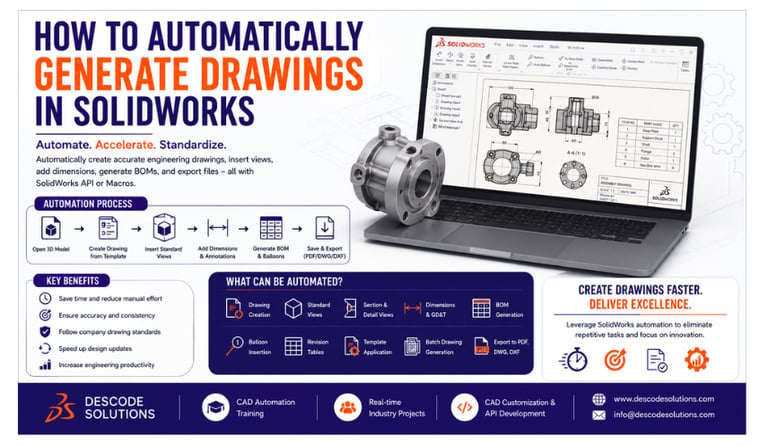
With SolidWorks Automation, engineers can automatically generate drawings, insert standard views, add dimensions, create Bills of Materials (BOMs), and export files in just a few clicks. By using SolidWorks API, VBA, or C#, companies can significantly reduce design time while maintaining consistency across projects.
In this blog, we'll explore how automatic drawing generation works and why it's becoming an essential part of modern CAD automation.
What is Drawing Automation in SolidWorks?
Drawing automation is the process of using macros or the SolidWorks API to create engineering drawings automatically from 3D models.
Automation can perform tasks such as:
Create new drawing files
Insert standard drawing views
Generate section and detail views
Add dimensions and annotations
Create Bills of Materials (BOMs)
Insert balloons
Apply drawing templates
Export drawings as PDF, DXF, or DWG
This reduces manual work and ensures every drawing follows company standards.
Why Automate Drawing Creation?
Manual drawing creation often involves repeating the same steps for every design.
For example:
Opening a drawing template
Inserting model views
Adding dimensions
Creating BOMs
Exporting PDFs
Saving files with the correct names
When these tasks are automated, engineers save valuable time and reduce the chances of errors.
Benefits of Automatic Drawing Generation
Save Engineering Time
Generate complete drawings in minutes instead of spending hours on repetitive drafting tasks.
Improve Accuracy
Automation applies predefined templates, dimensions, and annotations consistently, reducing manual mistakes.
Standardize Documentation
Ensure every drawing follows company drafting standards, title blocks, and naming conventions.
Faster Design Updates
When the 3D model changes, automated drawings can be updated quickly without recreating documentation.
Increase Productivity
Engineers can focus on design improvements while automation handles repetitive documentation.
How Automatic Drawing Generation Works
A typical automation workflow includes:
Step 1: Open the 3D Model
The automation application opens the required part or assembly.
Step 2: Create a Drawing
A new drawing is generated using a predefined company template.
Step 3: Insert Drawing Views
Standard views such as Front, Top, Right, and Isometric are placed automatically.
Step 4: Add Annotations
Dimensions, notes, center marks, and balloons are inserted based on company standards.
Step 5: Generate BOM
For assemblies, a Bill of Materials is created automatically.
Step 6: Export the Drawing
The finished drawing is saved in formats such as PDF, DWG, or DXF for manufacturing and documentation.
Features That Can Be Automated
SolidWorks drawing automation supports:
Drawing creation
Standard view generation
Section and detail views
Automatic dimensions
GD&T annotations
BOM generation
Balloon insertion
Revision table updates
PDF, DWG, and DXF export
Batch drawing generation
Real-World Example
A manufacturing company produces over 200 custom machine components each month.
Before Automation
Engineers manually:
Created drawings
Inserted standard views
Added dimensions
Generated BOMs
Exported PDFs
Average time per drawing: 25–30 minutes
After Automation
Using the SolidWorks API:
✔ Drawings are created automatically.
✔ Standard views are inserted instantly.
✔ BOMs and annotations are generated automatically.
✔ PDF and DWG files are exported with predefined naming conventions.
Average time per drawing: Less than 5 minutes
The company significantly reduced documentation time while improving consistency and accuracy.
Best Practices
To build efficient drawing automation solutions:
Use standard drawing templates.
Keep automation scripts modular and reusable.
Validate model data before generating drawings.
Implement proper error handling.
Follow company naming conventions.
Test automation with different part and assembly types.
Document your code for easier maintenance.
These practices help create reliable and scalable automation tools.
Industries Using Drawing Automation
Automatic drawing generation is widely used in:
Automotive
Aerospace
Industrial Equipment
Machine Design
Consumer Products
Medical Devices
Manufacturing
These industries rely on automation to deliver engineering documentation faster and more accurately.
Skills Required
To develop drawing automation solutions, engineers should have knowledge of:
CAD Skills
SolidWorks Part Modeling
Assemblies
Engineering Drawings
BOM Management
Programming Skills
VBA
C#
VB.NET
SolidWorks API
Object-Oriented Programming
Engineering Knowledge
Mechanical Design
Manufacturing Standards
GD&T
Engineering Documentation
Future of Drawing Automation
Drawing automation is evolving with modern engineering technologies, including:
Artificial Intelligence (AI)
Model-Based Definition (MBD)
Digital Twins
Cloud-Based Engineering
PLM Integration
Smart Manufacturing
These advancements are helping organizations automate documentation and accelerate product development.
Conclusion
Automatically generating drawings in SolidWorks is an effective way to improve engineering productivity, reduce repetitive work, and maintain consistent documentation standards. By using the SolidWorks API, VBA, or C#, organizations can automate drawing creation, BOM generation, annotations, and file exports, enabling engineers to focus on innovation rather than manual drafting.
As engineering projects continue to grow in complexity, drawing automation is becoming an essential part of efficient CAD workflows.
Contact Us
💼 At Descode Solutions, we specialize in:
✔ SolidWorks API & CAD Automation Training
✔ Real-time Industry Projects
✔ CAD Customization & API Development
✔ Engineering Automation Solutions
📈 Learn smarter. Automate faster. Accelerate your career in CAD automation.
📩 Looking to automate your SolidWorks drawing creation or enhance your CAD automation skills? Connect with us today!
📞 Phone: +91 9544 123 321
🌐 www.descodesolutions.com
📧 info@descodesolutions.com
CAD Automation Training
Expert CAD Automation training for professionals and students
OUR COURSES
Contact
info@descodesolutions.com
(+91) 9544 123 321
Copyright © 2026 Descode Solutions LLP
NX Customization
CATIA Customization
AutoCAD Customization
Solidworks Customization
Solid Edge Customization
Revit Customization
Inventor Customization
Creo Customization