
Getting Started with Creo Automation Using Toolkit API
Learn how to get started with Creo Automation using the Creo Toolkit API. This beginner-friendly guide explains the fundamentals of Creo Toolkit, its benefits, setup process, and real-world applications for building powerful CAD automation solutions.
6/8/20264 min read
Introduction
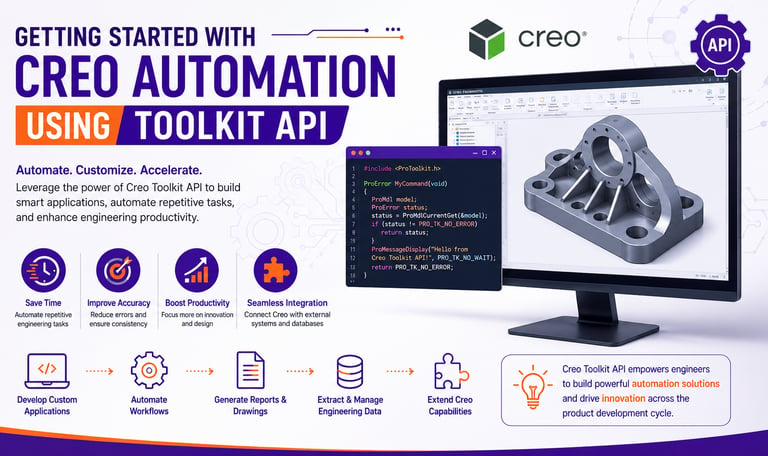
In modern product development, engineers are constantly looking for ways to improve productivity, reduce repetitive work, and accelerate design processes. Manual CAD operations often consume significant engineering time, especially when dealing with large assemblies, repetitive modeling tasks, and complex design workflows.
To overcome these challenges, companies increasingly rely on Creo Automation.
One of the most powerful ways to automate Creo Parametric is through the Creo Toolkit API, which allows developers to create custom applications, automate engineering tasks, and extend Creo's capabilities beyond its standard features.
Whether you are an engineering student, CAD designer, or software developer, understanding the Creo Toolkit API can help you build valuable skills in CAD customization and automation.
What is Creo Toolkit API?
Creo Toolkit is the native application programming interface (API) provided by PTC for customizing and automating Creo Parametric.
It allows developers to create standalone applications and integrated tools that communicate directly with Creo.
Using the Toolkit API, engineers can:
✔ Automate repetitive design tasks
✔ Create custom commands and menus
✔ Generate models automatically
✔ Access CAD data programmatically
✔ Integrate Creo with external systems
✔ Build advanced engineering applications
The Toolkit API provides deeper access to Creo functionality compared to basic scripting or macros.
Why Use Creo Toolkit API?
Many organizations use Creo Toolkit because it provides enterprise-level automation capabilities.
Key Benefits
Increased Productivity
Automate repetitive engineering operations and reduce manual effort.
Improved Accuracy
Automation minimizes human errors and ensures consistent workflows.
Faster Design Cycles
Reduce the time required for modeling, drawing generation, and data management.
Custom Engineering Solutions
Develop tools tailored to specific company requirements.
Seamless Integration
Connect Creo with ERP, PLM, databases, and manufacturing systems.
Understanding PTC Creo Automation: Macros vs. Creo Toolkit
When it comes to automating workflows in PTC Creo, users generally choose between Creo Macros and the Creo Toolkit API, depending on the scale and complexity of the task.
Creo Macros offer a simple, low-programming solution perfect for basic automation. They provide moderate performance and limited capabilities for custom UI creation or external integration, making them ideal for quick, everyday shortcuts.
Creo Toolkit, on the other hand, is an advanced developer tool designed for high-performance, large-scale enterprise applications. It requires high programming expertise but rewards users with extensive custom UI creation and advanced integration with external systems.
Ultimately, while macros are excellent for simple, localized automation, the Creo Toolkit is the definitive choice for professional, robust, and deeply integrated engineering solutions.
Programming Languages Used in Creo Toolkit
Creo Toolkit is primarily based on:
C++
The most commonly used language for Toolkit development.
Benefits:
✔ High performance
✔ Full API access
✔ Industry standard
C Language
Supported for low-level customization and legacy applications.
Many advanced automation projects use C++ due to its object-oriented capabilities.
How Creo Toolkit Works
The Toolkit API communicates directly with Creo Parametric.
The workflow typically follows these steps:
Step 1: Launch Creo
Creo Parametric starts and loads the Toolkit application.
Step 2: Connect to Creo Session
The application establishes communication with Creo.
Step 3: Access Creo Objects
Examples:
Parts
Assemblies
Features
Drawings
Parameters
Step 4: Execute Automated Tasks
The application performs predefined operations automatically.
Step 5: Return Results
Updated models, reports, drawings, or engineering data are generated.
Setting Up Creo Toolkit Development Environment
Before starting development, you need the following:
Software Requirements
Creo Parametric
Creo Toolkit License
Microsoft Visual Studio
C++ Development Tools
Basic Setup Process
Install Creo Parametric
Configure Creo Toolkit environment variables
Install Visual Studio
Create a Toolkit project
Configure include and library paths
Build and test your first application
Once configured, you can begin creating custom automation solutions.
Your First Creo Toolkit Application
A simple beginner project is displaying a custom message inside Creo.
Typical workflow:
Connect to Creo session
Register a command
Create a menu button
Execute a custom function
Display results
This introduces the core concepts of Toolkit development.
Common Automation Tasks Using Creo Toolkit
1. Part Modeling Automation
Automatically create:
Blocks
Shafts
Plates
Standard Components
based on user-defined parameters.
2. Assembly Automation
Automate:
✔ Component placement
✔ Constraint creation
✔ Assembly validation
✔ Assembly updates
This is particularly useful for large product assemblies.
3. Drawing Generation
Automatically create:
Drawing views
Dimensions
Notes
BOM Tables
This significantly reduces drafting time.
4. Batch Processing
Process hundreds of CAD files automatically.
Examples include:
PDF Export
STEP Export
DXF Export
Model Updates
5. Parameter Management
Update dimensions and design parameters automatically across multiple files.
6. Data Extraction
Extract:
Part Properties
Material Information
Mass Properties
Custom Attributes
for reporting and analysis.
Real-World Applications of Creo Toolkit
Automotive Industry
Vehicle component automation
Design validation
Assembly management
Aerospace Industry
Structural component generation
Documentation automation
Engineering analysis support
Manufacturing Industry
Product configuration systems
Drawing automation
BOM generation
Tool & Die Industry
Mold design automation
Standard feature generation
Manufacturing documentation
Best Practices for Creo Toolkit Development
Start Small
Begin with simple automation tasks before building complex applications.
Follow Coding Standards
Use consistent naming conventions and modular code structures.
Implement Error Handling
Always handle exceptions and unexpected user actions.
Document Your Code
Proper documentation improves maintainability.
Test Thoroughly
Validate applications before deployment in production environments.
Challenges Beginners May Face
Learning C++
Creo Toolkit requires programming knowledge.
Solution:
Start with basic C++ concepts before diving into API development.
Understanding Creo Objects
Creo contains a large object model.
Solution:
Study official documentation and API examples.
Debugging Issues
Complex applications may require extensive testing.
Solution:
Use logging and debugging tools provided by Visual Studio.
Career Opportunities
Professionals with Creo Toolkit skills are highly valued in engineering organizations.
Popular roles include:
Creo Automation Engineer
CAD Customization Engineer
Design Automation Engineer
Creo API Developer
Engineering Software Developer
As companies continue investing in automation, demand for these skills continues to grow.
Future of Creo Automation
The future of CAD automation is evolving rapidly with:
✔ Artificial Intelligence (AI)
✔ Smart Design Automation
✔ Digital Twins
✔ Cloud-Based Engineering Platforms
✔ Intelligent Manufacturing Systems
Creo Toolkit will remain a key technology for developing advanced engineering solutions.
Conclusion
Creo Toolkit API provides a powerful framework for automating tasks, customizing workflows, and building enterprise-grade engineering applications within Creo Parametric.
By learning Creo Toolkit, engineers can improve productivity, reduce repetitive work, and create innovative solutions that add significant value to organizations.
Whether you're just starting your automation journey or looking to advance your CAD customization skills, Creo Toolkit is an excellent technology to explore.
Contact Us
💼 At Descode Solutions, we specialize in:
✔ CATIA & NX Automation Training
✔ Creo Automation & Customization
✔ Real-time Industry Projects
✔ CAD Customization & API Development
📈 Learn smarter. Automate faster. Accelerate your career in CAD automation.
📩 Looking to master Creo Toolkit and automation development? Connect with us today!
📞 Phone: +91 9544 123 321
🌐 www.descodesolutions.com
📧 info@descodesolutions.com
CAD Automation Training
Expert CAD Automation training for professionals and students
OUR COURSES
Contact
info@descodesolutions.com
(+91) 9544 123 321
Copyright © 2026 Descode Solutions LLP
NX Customization
CATIA Customization
AutoCAD Customization
Solidworks Customization
Solid Edge Customization
Revit Customization
Inventor Customization
Creo Customization