
Creating Custom Add-ins in SolidWorks (Step-by-Step Guide)
Learn how to create custom add-ins in SolidWorks using API and C#. This step-by-step guide helps you build powerful automation tools to enhance your design workflow.
4/30/20262 min read
Overview
SolidWorks automation goes beyond simple macros. If you want to build powerful, reusable tools with custom interfaces, add-ins are the next step.
Custom add-ins allow you to extend SolidWorks functionality by integrating your own commands, tools, and workflows directly into the software. This makes them highly valuable for engineers and organizations looking to improve productivity and standardize processes.
What is a SolidWorks Add-in?
A SolidWorks add-in is a custom application that runs inside SolidWorks and adds new features to it.
With add-ins, you can:
Create custom toolbars and buttons
Automate complex workflows
Build user-friendly interfaces
Integrate external systems
Unlike macros, add-ins are more powerful, scalable, and suitable for professional use.
Why Use Add-ins Instead of Macros?
Advantages of Add-ins:
Persistent and always available in SolidWorks
Better performance and stability
Supports advanced UI design
Ideal for large and complex automation projects
Add-ins are the preferred choice for enterprise-level automation.
Tools Required
To create a SolidWorks add-in, you need:
SolidWorks installed
Visual Studio
Basic knowledge of C# or VB.NET
SolidWorks API SDK
C# is the most commonly used language for building add-ins.
Step-by-Step Guide to Create a SolidWorks Add-in
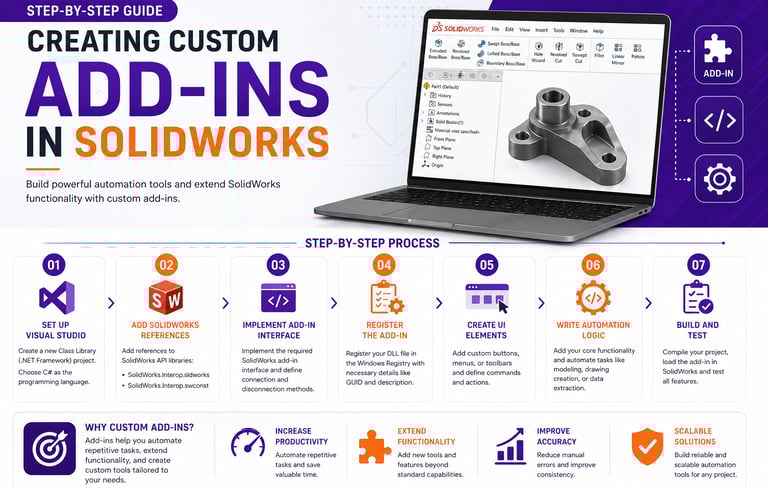
Step 1: Set Up Visual Studio
Open Visual Studio
Create a new Class Library (.NET Framework) project
Choose C# as the programming language
This project will be used to build your add-in.
Step 2: Add SolidWorks References
Add references to SolidWorks API libraries:
SolidWorks.Interop.sldworks
SolidWorks.Interop.swconst
These libraries allow your code to communicate with SolidWorks.
Step 3: Implement Add-in Interface
Implement the required SolidWorks add-in interface
Define connection and disconnection methods
This step ensures your add-in can load and run inside SolidWorks.
Step 4: Register the Add-in
Register your DLL file in the Windows Registry
Provide necessary details like GUID and description
Registration allows SolidWorks to recognize your add-in.
Step 5: Create UI Elements
Add custom buttons, menus, or toolbars
Define commands and actions
This improves usability and makes your tool interactive.
Step 6: Write Automation Logic
Add your core functionality
Automate tasks like modeling, drawing creation, or data extraction
This is where your add-in delivers value.
Step 7: Build and Test
Compile your project
Load the add-in in SolidWorks
Test all features and fix issues
Testing ensures reliability and performance.
Best Practices
To build effective add-ins:
Write clean and modular code
Use proper error handling
Optimize API calls for performance
Design user-friendly interfaces
Document your code properly
Following best practices ensures long-term success.
Real-World Applications
SolidWorks add-ins are widely used for:
Automating repetitive design tasks
Creating custom engineering tools
Standardizing company workflows
Integrating CAD with PLM/ERP systems
Generating reports and documentation
These applications significantly improve productivity and efficiency.
Conclusion
Creating custom add-ins in SolidWorks is a powerful way to take your CAD automation skills to the next level. While it requires some programming knowledge, the benefits in terms of efficiency, scalability, and professional growth are immense.
Start with simple add-ins, practice consistently, and gradually build more advanced solutions to become an expert in CAD automation.
Contact Us
💼 At Descode Solutions, we specialize in:
✔ CATIA & NX Automation Training
✔ Real-time Industry Projects
✔ CAD Customization & API Development
📈 Learn smarter. Automate faster. Accelerate your career in CAD automation.
📩 Looking to build custom add-ins or upgrade your automation skills? Connect with us today!
📞 Phone: +91 9544 123 321
🌐 www.descodesolutions.com
📧 info@descodesolutions.com
CAD Automation Training
Expert CAD Automation training for professionals and students
OUR COURSES
Contact
info@descodesolutions.com
(+91) 9544 123 321
Copyright © 2026 Descode Solutions LLP
NX Customization
CATIA Customization
AutoCAD Customization
Solidworks Customization
Solid Edge Customization
Revit Customization
Inventor Customization
Creo Customization