
Best Practices for Creo Toolkit Development
Learn the best practices for Creo Toolkit development to build reliable, efficient, and scalable CAD automation solutions. This guide covers coding standards, error handling, performance optimization, testing, and development tips that help engineers create professional Creo automation applications.
7/9/20263 min read
Introduction
Creo Toolkit is one of the most powerful APIs provided by PTC for developing custom applications and automating engineering workflows in Creo Parametric. It allows developers to create advanced automation solutions that can generate models, modify designs, automate assemblies, create drawings, and integrate Creo with external business systems.
However, developing a successful Creo Toolkit application requires more than just programming knowledge. Following industry best practices ensures your applications are reliable, maintainable, scalable, and easy to update as project requirements evolve.
This guide highlights the essential best practices every Creo Toolkit developer should follow to build high-quality CAD automation solutions.
Why Follow Best Practices?
A well-designed Creo Toolkit application offers several advantages:
Improves application performance
Reduces development time
Simplifies maintenance
Minimizes runtime errors
Ensures consistent engineering standards
Makes future enhancements easier
Adopting these practices from the beginning helps create robust automation solutions that deliver long-term value.
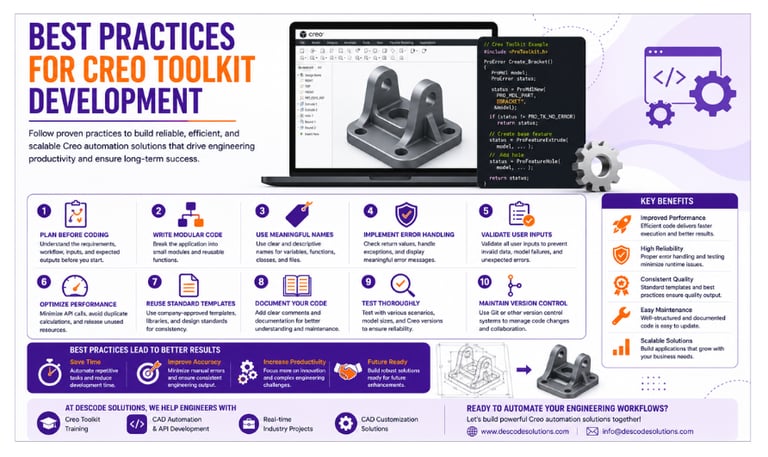
1. Plan Before You Start Coding
Before writing code, understand the engineering process you want to automate.
Ask questions such as:
What repetitive task needs automation?
What user inputs are required?
Which Creo objects will be accessed?
What should the final output be?
Proper planning reduces rework and leads to cleaner application design.
2. Write Modular Code
Avoid writing large blocks of code in a single function.
Instead:
Divide the application into smaller modules.
Create reusable functions.
Separate business logic from user interface code.
Modular programming improves readability, debugging, and future maintenance.
3. Use Meaningful Naming Conventions
Choose descriptive names for:
Variables
Functions
Classes
Files
Parameters
Meaningful names make the code easier to understand for both current and future developers.
4. Implement Proper Error Handling
Unexpected errors can occur due to invalid user input, missing files, or model failures.
Always:
Check API return values
Display meaningful error messages
Handle exceptions gracefully
Log important errors for troubleshooting
Good error handling improves application reliability and user experience.
5. Validate User Inputs
Never assume that user input is correct.
Validate:
Dimensions
Parameters
File paths
Material selections
Feature values
Input validation prevents invalid models and unexpected application failures.
6. Optimize Performance
Efficient applications improve engineering productivity.
Performance tips include:
Access only required model objects
Minimize unnecessary API calls
Avoid duplicate calculations
Release unused resources
Process data efficiently
Optimized code runs faster, especially when working with large assemblies.
7. Reuse Standard Templates
Use company-approved:
Part templates
Assembly templates
Drawing templates
Material libraries
Design standards
This ensures consistency across all engineering projects.
8. Document Your Code
Well-documented code is easier to maintain.
Include:
Function descriptions
Input and output details
Important logic explanations
Revision history (if required)
Good documentation saves time during future updates and debugging.
9. Test Thoroughly
Always test your application with different scenarios.
Verify:
Small and large models
Invalid inputs
Different feature combinations
Multiple Creo versions
Performance under heavy workloads
Comprehensive testing ensures stable and reliable automation.
10. Maintain Version Control
Use version control systems such as Git to:
Track code changes
Manage multiple developers
Restore previous versions
Simplify collaboration
Version control is essential for professional software development.
Real-World Example
A manufacturing company developed a Creo Toolkit application to automate bracket creation.
Before Following Best Practices
Long and complex code
Frequent application crashes
Difficult debugging
Inconsistent output
Slow execution
After Implementing Best Practices
✔ Modular and reusable code
✔ Faster execution
✔ Reliable automation
✔ Easier maintenance
✔ Consistent engineering standards
The application became easier to update and significantly improved engineering productivity.
Common Mistakes to Avoid
Avoid these common development mistakes:
Writing hard-coded values
Ignoring API return codes
Skipping input validation
Poor variable naming
Lack of documentation
Insufficient testing
Repeating the same code
Eliminating these issues results in more stable and maintainable applications.
Skills Required for Creo Toolkit Development
Successful developers should have knowledge of:
CAD Skills
Creo Parametric
Part Modeling
Assemblies
Engineering Drawings
Programming Skills
C/C++
Object-Oriented Programming
Data Structures
Debugging
File Handling
Engineering Knowledge
Mechanical Design
Manufacturing Processes
Product Development
Engineering Standards
A combination of engineering expertise and programming skills is key to mastering Creo Toolkit.
Future of Creo Toolkit Development
As manufacturing moves toward Industry 4.0, Creo Toolkit is evolving alongside technologies such as:
Artificial Intelligence (AI)
Digital Twins
Model-Based Definition (MBD)
Smart Manufacturing
Cloud Engineering
PLM Integration
Developers who follow best practices today will be well-prepared to build next-generation engineering automation solutions.
Conclusion
Following best practices for Creo Toolkit development helps engineers build automation applications that are reliable, scalable, and easy to maintain. From planning and modular coding to performance optimization, testing, and documentation, every step contributes to creating professional CAD automation solutions.
By adopting these practices, organizations can improve productivity, reduce development time, and ensure consistent engineering quality across projects.
Contact Us
💼 At Descode Solutions, we specialize in:
✔ Creo Toolkit & CAD Automation Training
✔ Real-time Industry Projects
✔ CAD Customization & API Development
✔ Engineering Automation Solutions
📈 Learn smarter. Automate faster. Accelerate your CAD automation career.
📩 Looking to master Creo Toolkit development or automate your engineering workflows? Connect with us today!
📞 Phone: +91 9544 123 321
🌐 www.descodesolutions.com
📧 info@descodesolutions.com
CAD Automation Training
Expert CAD Automation training for professionals and students
OUR COURSES
Contact
info@descodesolutions.com
(+91) 9544 123 321
Copyright © 2026 Descode Solutions LLP
NX Customization
CATIA Customization
AutoCAD Customization
Solidworks Customization
Solid Edge Customization
Revit Customization
Inventor Customization
Creo Customization