
Automating Repetitive Tasks in SolidWorks Using Macros
Discover how SolidWorks macros can automate repetitive design tasks, improve engineering productivity, and reduce manual errors. This comprehensive guide explains what SolidWorks macros are, how they work, their benefits, real-world applications, and best practices for creating efficient CAD automation solutions.
7/13/20263 min read
Introduction
Engineers using SolidWorks often spend a significant portion of their day performing repetitive tasks such as creating similar parts, updating custom properties, generating drawings, exporting files, and preparing Bills of Materials (BOMs). While these tasks are essential, they consume valuable time that could be spent on design innovation and problem-solving.
This is where SolidWorks Macros become a powerful productivity tool.
SolidWorks macros allow engineers to automate routine operations with just a single click. Whether it's generating standard parts, exporting drawings to PDF, renaming files, or updating model properties, macros help streamline workflows, improve consistency, and minimize human error.
In this blog, we'll explore how SolidWorks macros work, their key benefits, and how organizations can use them to boost engineering efficiency.
What Are SolidWorks Macros?
A SolidWorks macro is a recorded or programmed sequence of commands that automatically performs repetitive tasks inside SolidWorks.
Macros can be created using:
VBA (Visual Basic for Applications)
VB.NET
C#
While VBA is commonly used for quick automation, VB.NET and C# are preferred for developing more advanced and scalable automation solutions.
Using the SolidWorks API, macros can interact with models, assemblies, drawings, custom properties, and many other SolidWorks features.
Why Automate Repetitive Tasks?
Many engineering activities involve repeating the same steps multiple times.
Examples include:
Creating standard components
Updating dimensions
Renaming files
Exporting drawings
Updating custom properties
Generating BOMs
Printing drawings
Saving files in multiple formats
Performing these tasks manually increases the chances of mistakes and consumes valuable engineering time.
Automation eliminates repetitive work and allows engineers to focus on product development and innovation.
Benefits of Using SolidWorks Macros
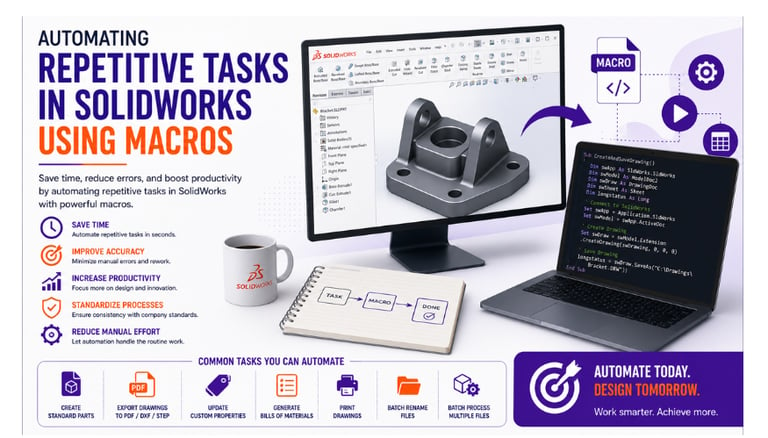
Save Engineering Time
Macros execute repetitive tasks within seconds, reducing hours of manual work.
Improve Accuracy
Automation follows predefined rules, ensuring consistent results and minimizing human errors.
Increase Productivity
Engineers can complete more work in less time by automating routine operations.
Standardize Design Processes
Macros help enforce company standards for file naming, templates, properties, and documentation.
Reduce Manual Effort
Routine operations are completed automatically, allowing engineers to focus on more complex design challenges.
Common Tasks That Can Be Automated
SolidWorks macros can automate a wide range of activities, including:
Creating standard parts
Updating custom properties
Batch renaming files
Exporting PDF, STEP, IGES, and DXF files
Generating Bills of Materials (BOM)
Printing drawings
Updating dimensions
Creating drawing views
Changing materials
Opening and saving files
Batch processing multiple documents
These automations can significantly improve day-to-day engineering workflows.
How SolidWorks Macros Work
A typical macro follows these steps:
Step 1: Start SolidWorks
Launch SolidWorks and open the required part, assembly, or drawing.
Step 2: Run the Macro
The macro is executed from the Macro menu or assigned to a toolbar button or keyboard shortcut.
Step 3: Perform Automated Operations
The macro automatically carries out predefined actions, such as updating properties, creating drawings, or exporting files.
Step 4: Save the Results
The updated files are saved automatically according to company standards.
This process reduces manual intervention and ensures consistency.
Real-World Example
Imagine a company producing sheet metal brackets in multiple sizes.
Before Automation
For each bracket, engineers had to:
Open the template
Modify dimensions
Update custom properties
Generate drawings
Export PDF and DXF files
Save using company naming conventions
Average time per design: 30 minutes
After Automation
Using a SolidWorks macro:
✔ Enter the required dimensions
✔ The macro updates the model automatically
✔ Drawings are generated instantly
✔ PDF and DXF files are exported automatically
✔ Custom properties are updated
✔ Files are saved using predefined naming rules
Average time per design: Less than 5 minutes
The result is faster project completion, improved consistency, and reduced manual effort.
Best Practices for SolidWorks Macro Development
To create reliable and maintainable macros:
Use meaningful variable and function names.
Keep your code modular and reusable.
Include proper error handling.
Validate user inputs before execution.
Avoid hard-coded values whenever possible.
Add comments to improve code readability.
Test macros with different models and assemblies.
Maintain version control for future updates.
Following these practices helps build robust automation solutions.
Skills Required
Developing SolidWorks macros requires a combination of CAD and programming knowledge.
CAD Skills
SolidWorks Part Modeling
Assemblies
Drawings
Configurations
Programming Skills
VBA
VB.NET
C#
Object-Oriented Programming
Debugging
Engineering Knowledge
Mechanical Design
Manufacturing Processes
Product Development
Engineering Standards
Industries Using SolidWorks Automation
SolidWorks macros are widely used in:
Automotive
Industrial Equipment
Aerospace
Consumer Products
Medical Devices
Machine Design
Manufacturing
Engineering Service Companies
Organizations use automation to improve efficiency, reduce costs, and accelerate product development.
Future of SolidWorks Automation
As Industry 4.0 continues to evolve, SolidWorks automation is expanding through:
Artificial Intelligence (AI)
Cloud-Based Engineering
Digital Twins
Smart Manufacturing
Model-Based Definition (MBD)
PLM and ERP Integration
These technologies are making CAD automation more intelligent, connected, and efficient.
Conclusion
Automating repetitive tasks in SolidWorks using macros is one of the most effective ways to improve engineering productivity and reduce manual effort. By automating routine operations such as model updates, drawing generation, file exports, and BOM creation, engineers can save time, improve accuracy, and focus on innovation.
Whether you're just getting started with VBA macros or planning to develop advanced automation solutions using the SolidWorks API, learning SolidWorks automation is a valuable investment for modern engineering teams.
Contact Us
💼 At Descode Solutions, we specialize in:
✔ SolidWorks API & CAD Automation Training
✔ Real-time Industry Projects
✔ CAD Customization & API Development
✔ Engineering Automation Solutions
📈 Learn smarter. Automate faster. Accelerate your career in CAD automation.
📩 Looking to automate your SolidWorks workflows or enhance your CAD automation skills? Connect with us today!
📞 Phone: +91 9544 123 321
🌐 www.descodesolutions.com
📧 info@descodesolutions.com
CAD Automation Training
Expert CAD Automation training for professionals and students
OUR COURSES
Contact
info@descodesolutions.com
(+91) 9544 123 321
Copyright © 2026 Descode Solutions LLP
NX Customization
CATIA Customization
AutoCAD Customization
Solidworks Customization
Solid Edge Customization
Revit Customization
Inventor Customization
Creo Customization