
Automating Repetitive Tasks in CATIA Using Macros
Discover how CATIA macros can automate repetitive engineering tasks, reduce design time, improve accuracy, and boost productivity. This beginner-friendly guide explains everything you need to know about CATIA macro automation, from basics to real-world applications.
6/1/20263 min read
Introduction
In today's fast-paced engineering environment, companies are constantly looking for ways to improve efficiency, reduce manual work, and accelerate product development. Engineers often spend a significant amount of time performing repetitive tasks such as creating standard features, updating parameters, generating reports, and modifying designs.
While these tasks are necessary, they consume valuable engineering hours that could be spent on innovation and problem-solving.
This is where CATIA Macros become extremely valuable.
CATIA macros allow engineers to automate repetitive operations, streamline workflows, and improve overall productivity. Whether you are a student, design engineer, or CAD automation professional, learning CATIA macro automation can significantly enhance your engineering capabilities.
What is a CATIA Macro?
A CATIA macro is a small program that automates tasks inside CATIA.
Instead of manually performing the same sequence of operations repeatedly, a macro can execute those actions automatically with a single click.
Macros can interact with:
Parts
Assemblies
Drawings
Parameters
Geometrical Sets
Product Structures
User Properties
CATIA provides built-in support for automation through its powerful API framework.
Why Use Macros in CATIA?
Many engineering activities involve repetitive operations that add little value but consume significant time.
Examples include:
Creating standard features
Renaming parts
Updating parameters
Exporting files
Generating reports
Checking model properties
Updating drawings
Performing these tasks manually can lead to:
❌ Increased design time
❌ Human errors
❌ Inconsistent workflows
❌ Reduced productivity
Macros solve these problems by automating routine activities.
Benefits of CATIA Macro Automation
1. Save Engineering Time
Tasks that normally take hours can often be completed in minutes.
Example:
Updating hundreds of components manually may take several hours, while a macro can complete the same task automatically.
2. Reduce Human Errors
Automation follows predefined rules and processes.
Benefits include:
✔ Consistent results
✔ Fewer mistakes
✔ Better quality control
3. Improve Productivity
Engineers spend less time on repetitive work and more time on design and innovation.
4. Standardize Engineering Processes
Macros ensure every user follows the same workflow and company standards.
This improves consistency across projects.
5. Increase ROI
Companies can complete projects faster while reducing engineering costs.
Programming Languages Used for CATIA Macros
CATIA supports multiple automation languages.
VBA (Visual Basic for Applications)
Most commonly used for CATIA macro development.
Benefits:
✔ Easy to learn
✔ Beginner-friendly
✔ Fast development
VBScript
Useful for simple automation tasks and scripting.
CATScript
Native scripting language supported by CATIA.
C#
Used for advanced CAD automation and professional applications.
How CATIA Macros Work
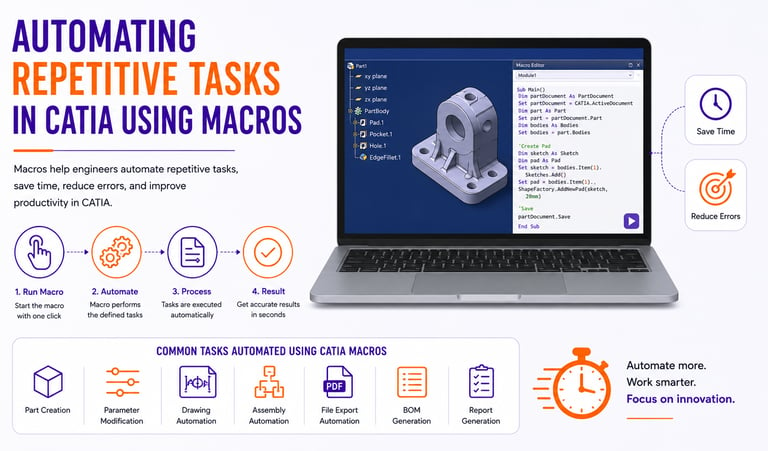
The automation process generally follows these steps:
Step 1: User Executes Macro
The macro is launched manually or through a custom interface.
Step 2: Connect to CATIA Session
The macro establishes communication with CATIA.
Step 3: Access Required Objects
Examples:
Parts
Sketches
Features
Drawings
Step 4: Perform Automated Actions
The macro executes predefined operations.
Step 5: Generate Results
Outputs may include:
Updated models
Reports
Drawings
Exported files
Common Tasks Automated Using CATIA Macros
Part Creation Automation
Automatically create standard components based on predefined parameters.
Examples:
Plates
Brackets
Blocks
Mechanical Parts
Parameter Modification
Update dimensions and design parameters automatically.
This is especially useful for configurable products.
Drawing Automation
Generate:
Drawing views
Dimensions
Annotations
Title blocks
Automatically from 3D models.
Assembly Automation
Automate:
Component insertion
Product structure creation
Assembly updates
File Export Automation
Automatically export:
PDF
STEP
IGES
DXF
for manufacturing and documentation purposes.
BOM Generation
Create Bills of Materials automatically from assemblies.
Benefits include:
✔ Faster documentation
✔ Improved accuracy
✔ Reduced manual effort
Real-World Industry Applications
Automotive Industry
Automating:
Vehicle component design
Assembly management
Drawing generation
Aerospace Industry
Automating:
Structural components
Documentation
Design validation
Manufacturing Industry
Automating:
Product configurations
Standard parts
Production drawings
Industrial Equipment Design
Automating:
Design modifications
Data extraction
Reporting workflows
Example Workflow
Imagine an engineer needs to generate 100 manufacturing drawings.
Manual Process
Open model
Create drawing
Add views
Add dimensions
Save PDF
Repeat 100 times.
Automated Process
A CATIA macro can:
✔ Open all files automatically
✔ Generate drawings
✔ Create views
✔ Add standard information
✔ Export PDFs
Result: Hours of work reduced to minutes.
Best Practices for CATIA Macro Development
To create reliable automation solutions:
Keep Macros Simple Initially
Start with small automation tasks and gradually increase complexity.
Use Meaningful Variable Names
This makes code easier to understand and maintain.
Add Error Handling
Prevent crashes and improve reliability.
Document Your Code
Proper comments make future modifications easier.
Test Thoroughly
Validate automation results before deploying in production environments.
Future of CATIA Automation
The future of CAD automation is rapidly evolving.
Emerging technologies include:
✔ AI-assisted design automation
✔ Smart engineering workflows
✔ Digital twins
✔ Intelligent manufacturing systems
✔ Cloud-based CAD automation
Engineers who understand CATIA automation will be well-positioned for future opportunities.
Career Opportunities in CATIA Automation
Demand for automation professionals continues to grow across industries.
Popular roles include:
CATIA Automation Engineer
CAD Customization Engineer
Design Automation Engineer
CATIA Developer
Engineering Software Developer
Professionals with both CAD and programming skills often enjoy excellent career growth.
Conclusion
CATIA macros provide a powerful way to automate repetitive engineering tasks, improve productivity, and reduce manual effort. From part creation and drawing generation to BOM creation and file exports, automation helps engineers work faster and smarter.
Whether you are a student beginning your automation journey or an experienced engineer looking to optimize workflows, learning CATIA macro development is a valuable investment for the future.
Contact Us
💼 At Descode Solutions, we specialize in:
✔ CATIA & NX Automation Training
✔ Real-time Industry Projects
✔ CAD Customization & API Development
📈 Learn smarter. Automate faster. Accelerate your career in CAD automation.
📩 Looking to master CATIA automation and macro development? Connect with us today!
📞 Phone: +91 9544 123 321
🌐 www.descodesolutions.com
📧 info@descodesolutions.com
CAD Automation Training
Expert CAD Automation training for professionals and students
OUR COURSES
Contact
info@descodesolutions.com
(+91) 9544 123 321
Copyright © 2026 Descode Solutions LLP
NX Customization
CATIA Customization
AutoCAD Customization
Solidworks Customization
Solid Edge Customization
Revit Customization
Inventor Customization
Creo Customization